

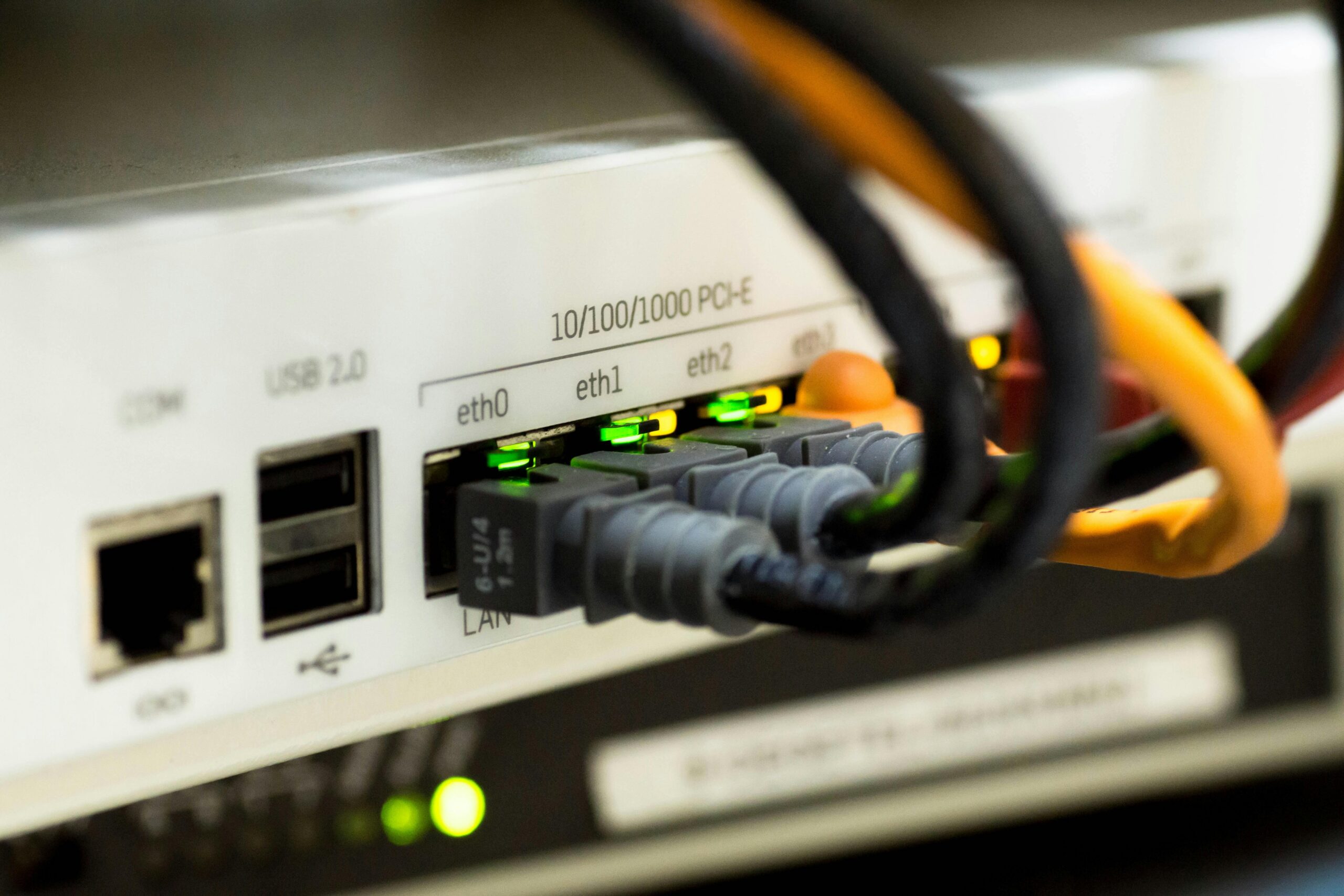
In the context of a more and more automated and digitalized world, the network defaults might not just be enough. With some pretty basic ideas, we could harden the security easy enough.
Typical home networks offer a single entry point to the network for every device and allow unrestricted interactions between devices.
In a really dark assumption, your smart fridge has the ability to scan your network and download any photos of you and your loved ones and publish them somewhere over the internet.
In other words, IoT devices where you don't have too much control over what they do can scan your network, together with the work laptop and any guest device. Even assuming that your providers have the best intentions, they still have their own vulnerabilities which you might inherit.
Our solution to this problem is to make a set of rules, mainly based on the principle of least privilege. So we will aim for a zero trust network where what is allowed is explicitly defined. Apart from that, we will aim for some basic security hardening.
The commands and screenshots in this article are mainly for using a Mikrotik hAP ax3 device running RouterOS version 7. But following the principles described, you can adapt the commands to your network specs.
To have the smooth transition to the new network, we will keep the old configuration, define another one, then move the devices to the new one, test that everything is fine, then remove the old configuration.
Ask GPT
In the past few years, AI has been a part of our lives and has evolved into being really useful. I think we are still far from being replaced by AI, but we are even further from working without it. With the knowledge and the "overview context window" humans have, we can get to good results much-much faster.
Thus, it's essential to use it:
I own a Mikrotik hAP ax3 which is at the root of my network. I have a work computer, a personal windows laptop, a personal macbook, a nas, a chromecast and two raspberry pis. I own an android phone. I also own a printer.
one of the raspberry pis contains some services like owncloud, other docker apps and the pihole which is used for dns by the router.
apart from all these I have another cudy router for which I would like a connection to the home network when the traveling. right now I have a direct connection from my macbook to the pi with tailscale, but I want this improved in the future.
I want the work computer isolated from my network. I want a configuration for my network with separation of concerns for high security (e.g. my laptop computer should be isolated from any resources, same for the devices visiting), but be able to add easily new devices I own.
I currently have the base configuration with 2.4g and 5g wifis for the router with a lan connection to the ISP for internet, via PPP. I am thinking that only one network called Parallax, which by default separates the devices and only allows internet for each device. Then, some groups could be created where the computers be assigned manually by mac, e.g. a group which will be able to access everything and the mikrotik admin interface, a group which will be able to access everything, a group which will be able to access only the printer, a group which will be able to access the printer and the router etc. I also want one lan port which will automatically allow access to all resources of the network, including the mikrotik admin interface.
I want my IPs to start with 10.x.x.x and I want them grouped by the group they are a part of. also, I want the lan IPs identifiable.
first of all, ask me one my one questions you need for clarifying my request. when you are clear on what I want, ask me if I want to add anything else, then explain how do implement the solution. I prefer the command line, but for each operation also explain how to do the changes in the web interface.
I asked this of OpenAI's ChatGPT, but any might suffice. Please know the "ask me one my one questions you need for clarifying my request" which has often proven useful for me.
This is a pretty basic prompt, which has the main goal of describing the situation. It lacks the "You are a security and network expert.." intro, as lately the big players in the AI field do good without it, as well.
Such a prompt will help you with clarifying the problem you want to fix and often give you good pointers and advice.
Solution overview
What we aim to implement is grouping for devices and isolating them from the other groups. We could do this by creating separate networks, which is the most secure approach, but comes with the main downfall that if you need to create exceptions, you need to add new networks and move the devices from one network to another.
Our approach is to have a single point of entry where all devices connect and allow them only access to the internet by default. Then, based on the MAC of each device, assign them to groups.
So we will keep in mind the following principles:
- default deny (least privilege) - this is the root idea of the changes that we want to implement, mainly allow
LAN -> Internet, but disallowLAN -> LAN; - segmentation - separate the devices in groups created by trust levels, not device types;
- control east-west traffic - by keeping ports closed and other methods, routers protect the network from the outside world, but not from internal attacks;
- minimize broadcast exposure - broadcast protocols (mDNS, SSDP, NetBIOS, ARP) can leak information and this is a known risk in the model we are using, mainly for convenience, especially since this is a home network;
- protect infrastructure devices and the Control Plane - e.g. the router should not be accessible to any device;
- separate identity from connectivity - this is another known risk for our implementation, mainly because we use the MAC for identity, which can be spoofed. However, for convenience, we will allow this;
- secure the DNS layer - this is a big attack surface, so we should pay close attention to it. We will implement a PI hole with secure DNS fallbacks;
- reduce attack surfaces - reduce the number of open ports from services in the network;
- logging and visibility - make sure we have a mechanism for detecting malfunctions;
- patch and update - keep your systems as up to date as possible;
- backup configurations
The groups we will create are:
- Core - trusted devices which can also access the router admin;
- All - most of the devices in the network;
- Virtual - we will have virtual machines and to easily identify them, they will be a part of this group;
- Guest - IoT devices and the work laptops, the default rights. A future improvement could be to move these to completely separated network, for higher security.
Create the network
The first step for the implementation is to create the network. For that, we need a network name. The chosen one for our network will be Parallax, a villain in the DC Universe and also a beloved effect back in the jQuery days. 🙂
Read more:
- https://en.wikipedia.org/wiki/Parallax_(character)
- https://pixelcog.github.io/parallax.js/
- https://www.space.com/30417-parallax.html
The proper way to create the network is to add another one in parallel, implement the configuration we want, connect our devices to the new network, then sunset the old one.
However, this is my home network where downtime doesn't really matter. So to save time, I will go with resetting the router to the defaults and then adding the new network.
The router defaults to 192.168.88.1, which we will change to a 10.x.x.x.
With Mikrotik it can be done in the quick set interface. Change the IP address for the router, but remember to change the DHCP Server Range as well, otherwise you might have trouble connecting to the admin interface.
Read more:
Implement the segmentation
The first choice we have to make is between having a single SSID (Parallax) or having multiple SSIDs (Parallax, Parallax-IoT, Parallax-Guest etc). With multiple SSIDs, the security is slightly better, but you lose some of the control you have over how the connected devices interact.
Thus, the choice is to have only one SSID. Optionally, later we could add Parallax-Guest, to make sure the devices which are unknown don't have access to anything in the network.
We will also use an L3 zero trust, which means that we will not have VLANs, which means that devices will still be able to discover each other, but will not be able to "talk" to each other. For more context, the OSI (Open Systems Interconnection) networking layers are:
- L1 (Physical): signals on wire/fiber/cable;
- L2 (Data Link): local network delivery by MAC address;
- L3 (Network): IP addressing and routing between networks/subnets (routers, static routes);
- L4 (Transport): TCP/UDP ports, reliable delivery, flow control;
- L5 (Session): session management (less used explicitly today);
- L6 (Presentation): data format/encryption (TLS, encoding);
- L7 (Application): app protocols (HTTP, DNS, SSH, SMTP)
The default rules we will implement are the following:
- all devices can access the internet;
- any device cannot access anything in the network.
The exceptions will be established via groups, by manually assigning IPs to MAC addresses.
The IP address architecture is the following:
- 10.10.0.0/24
- group name:
core; - has full access to the network and can also access the router admin;
- for ethernet connections, we will start with 100 (e.g. 10.10.0.102) and wifi will be at the beginning (e.g. 10.10.0.4);
- group name:
- 10.20.0.0/24
- group name:
all; - these are the trusted devices which can access the whole network and talk to each other;
- for ethernet connections, we will start with 100 (e.g. 10.20.0.102) and wifi will be at the beginning (e.g. 10.20.0.4);
- group name:
- 10.30.0.0/24
- group name:
virtual; - we will set the virtual machine hosts in the all group, but each of the VMs will be in the virtual group;
- reserved for VMs / containers;
- group name:
- 10.40.0.0/24
- group name:
guest; - can only access the internet.
- group name:
Access matrix for groups:
| From ↓ / To → | Core | All | Virtual | Guest | Internet | Router |
|---|---|---|---|---|---|---|
| Core | ✅ | ✅ | ✅ | ✅ | ✅ | ✅ |
| All | ✅ | ✅ | ✅ | ✅ | ✅ | ❌ |
| Virtual | ❌ | ❌ | ✅ | ❌ | ✅ | ❌ |
| Guest | ❌ | ❌ | ❌ | ❌ | ✅ | ❌ |
Backup and identity
The first and one of the most important steps is to make a backup of the configuration you have. To save time, you could have a basic setup before doing the backup.
/export file=backup-before-parallaxCode language: JavaScript (javascript)In WebFig or WinBox you can go to: Files > Backup
To set the identity of the router (simply put, its name), you can use this command:
/system/identity/set name=ParallaxCode language: JavaScript (javascript)IP Addressing
After the following changes, you will need to reconnect to the router.
# Add group gateways — all on the same bridge
/ip/address/add address=10.10.0.1/24 interface=bridge comment="Core gateway"
/ip/address/add address=10.20.0.1/24 interface=bridge comment="All gateway"
/ip/address/add address=10.30.0.1/24 interface=bridge comment="Virtual gateway"
/ip/address/add address=10.40.0.1/24 interface=bridge comment="Guest gateway"

# Remove old address
/ip/address/remove [find where address~"192.168.88"]
You will have connection issues, so you must manually set an IP for your ethernet connection in the range 10.10.0.x.
DHCP
Set the IP pools:
# Remove existing pools
/ip/pool/remove [find]

# Guest pool — default for unknown devices
/ip/pool/add name=pool-guest ranges=10.40.0.100-10.40.0.254

# Optional pools for dynamic assignment within groups
/ip/pool/add name=pool-core ranges=10.10.0.10-10.10.0.254
/ip/pool/add name=pool-all ranges=10.20.0.10-10.20.0.254
/ip/pool/add name=pool-virtual ranges=10.30.0.10-10.30.0.254Code language: PHP (php)
Alter the DHCP server:
# Remove existing DHCP servers and networks
/ip/dhcp-server/remove [find]
/ip/dhcp-server/network/remove [find]

# Create the DHCP server — default pool is guest
/ip/dhcp-server/add name=dhcp-parallax interface=bridge \
    address-pool=pool-guest lease-time=1d disabled=no

# DHCP network entries (matched by the IP assigned to client)
/ip/dhcp-server/network/add address=10.10.0.0/24 gateway=10.10.0.1 \
    dns-server=10.10.0.1 comment="Core network"
/ip/dhcp-server/network/add address=10.20.0.0/24 gateway=10.20.0.1 \
    dns-server=10.10.0.1 comment="All network"
/ip/dhcp-server/network/add address=10.30.0.0/24 gateway=10.30.0.1 \
    dns-server=10.10.0.1 comment="Virtual network"
/ip/dhcp-server/network/add address=10.40.0.0/24 gateway=10.40.0.1 \
    dns-server=10.10.0.1 comment="Guest network"

/interface/bridge/set [find name=bridge] dhcp-snooping=yes
Once these commands are set, convert your IP from manually assigned to dynamic again.
This is an example for adding a static lease (the MAC address is fictive):
/ip/dhcp-server/lease/add server=dhcp-parallax \
    mac-address=AA:BB:CC:DD:EE:01 address=10.10.0.2 comment="MacBook (WiFi)"Code language: JavaScript (javascript)
If you are rebuilding your configuration and already have leases you want to keep, you can use /ip dhcp-server lease print to make a list, then maybe use an A.I. service to convert the list into commands to make these assignments.
Firewall
Add the necessary interfaces, and ignore the failure messages if they indicate an already existing interface:
/interface/list/add name=WAN comment="WAN interfaces"
/interface/list/member/add list=WAN interface=pppoe-out1 comment="PPPoE to ISP"Code language: JavaScript (javascript)
Disable existing filter rules first:
/ip/firewall/filter/remove [find]
/ip/firewall/filter/disable [find where builtin=yes]
/ip/firewall/nat/remove    [find]
/ip/firewall/raw/remove    [find]
/ip/firewall/raw/disable   [find]
/ip/firewall/address-list/remove [find]Code language: PHP (php)
Create the new rules:
## Address lists:
/ip/firewall/address-list

# Core group (10.10.0.0/24)
add list=core        address=10.10.0.0/24  comment="Core subnet"
add list=lan         address=10.10.0.0/24  comment="Core in LAN"
add list=lan_subnets address=10.10.0.0/24  comment="Core in LAN subnets"

# All group (10.20.0.0/24)
add list=all-devices address=10.20.0.0/24  comment="All-devices subnet"
add list=lan         address=10.20.0.0/24  comment="All in LAN"
add list=lan_subnets address=10.20.0.0/24  comment="All in LAN subnets"

# Virtual group (10.30.0.0/24)
add list=virtual     address=10.30.0.0/24  comment="Virtual subnet"
add list=lan         address=10.30.0.0/24  comment="Virtual in LAN"
add list=lan_subnets address=10.30.0.0/24  comment="Virtual in LAN subnets"

# Guest group (10.40.0.0/24)
add list=guest       address=10.40.0.0/24  comment="Guest subnet"
add list=lan         address=10.40.0.0/24  comment="Guest in LAN"
add list=lan_subnets address=10.40.0.0/24  comment="Guest in LAN subnets"

## Router's own ip
add list=lan         address=10.10.0.1     comment="Router core IP"
add list=lan         address=10.20.0.1     comment="Router all IP"
add list=lan         address=10.30.0.1     comment="Router virtual IP"
add list=lan         address=10.40.0.1     comment="Router guest IP"

## Bogons (RFC 5735 / RFC 6890)
/ip/firewall/address-list
add list=bogons address=0.0.0.0/8        comment="Bogon: this network"
add list=bogons address=10.0.0.0/8       comment="Bogon: RFC1918"
add list=bogons address=100.64.0.0/10    comment="Bogon: CGN"
add list=bogons address=127.0.0.0/8      comment="Bogon: Loopback"
add list=bogons address=169.254.0.0/16   comment="Bogon: Link-local"
add list=bogons address=172.16.0.0/12    comment="Bogon: RFC1918"
add list=bogons address=192.0.0.0/24     comment="Bogon: IETF Protocol"
add list=bogons address=192.0.2.0/24     comment="Bogon: TEST-NET-1"
add list=bogons address=192.168.0.0/16   comment="Bogon: RFC1918"
add list=bogons address=198.18.0.0/15    comment="Bogon: Benchmark"
add list=bogons address=198.51.100.0/24  comment="Bogon: TEST-NET-2"
add list=bogons address=203.0.113.0/24   comment="Bogon: TEST-NET-3"
add list=bogons address=224.0.0.0/3      comment="Bogon: Multicast+Reserved"

## Raw Table - Pre-conntrack Protection
/ip/firewall/raw

# RAW-1. Drop bogon sources from WAN before conntrack
add chain=prerouting action=drop \
    in-interface-list=WAN src-address-list=bogons \
    comment="RAW-1: drop bogon sources before conntrack"

# RAW-2a. Allow up to 200 SYN/s (burst 200)
add chain=prerouting action=accept \
    in-interface-list=WAN protocol=tcp tcp-flags=syn,!ack \
    limit=200,200:packet \
    comment="RAW-2a: allow SYN rate"

# RAW-2b. Drop SYN above threshold
add chain=prerouting action=drop \
    in-interface-list=WAN protocol=tcp tcp-flags=syn,!ack \
    comment="RAW-2b: drop excess SYN"

# RAW-3. Drop null-scan packets before conntrack
add chain=prerouting action=drop \
    in-interface-list=WAN protocol=tcp \
    tcp-flags=!fin,!syn,!rst,!ack \
    comment="RAW-3: drop null scan before conntrack"

# RAW-4. XMAS scan detection
add chain=prerouting action=drop \
    in-interface-list=WAN protocol=tcp \
    tcp-flags=fin,psh,urg,!syn,!rst,!ack \
    comment="RAW-4: drop XMAS scan before conntrack"

## NAT. Network Address Translation (NAT) allows a device from a local network (LAN) to access the internet by rewriting its private IP address to the router's public IP address. Masquerading is the dynamic version of it. The NAT rules also force all DNS queries through the router, which forwards them to the Pi-hole.
/ip/firewall/nat

add chain=srcnat out-interface-list=WAN action=masquerade \
    comment="NAT: masquerade LAN to WAN"

# Force all LAN DNS through the router (which forwards to Pi-hole)
add chain=dstnat protocol=udp dst-port=53 \
    src-address-list=lan_subnets dst-address-list=!lan_subnets \
    action=redirect to-ports=53 \
    comment="NAT: redirect DNS UDP to router"

add chain=dstnat protocol=tcp dst-port=53 \
    src-address-list=lan_subnets dst-address-list=!lan_subnets \
    action=redirect to-ports=53 \
    comment="NAT: redirect DNS TCP to router"

# Input chain

/ip/firewall/filter

# IN-1. Drop bogon sources from WAN (defense in depth; also in raw)
add chain=input action=drop \
    in-interface-list=WAN src-address-list=bogons \
    comment="IN-1: drop bogon sources from WAN"

# IN-2. Accept established, related, untracked
add chain=input action=accept \
    connection-state=established,related,untracked \
    comment="IN-2: accept established/related/untracked"

# IN-3. Drop invalid
add chain=input action=drop \
    connection-state=invalid \
    comment="IN-3: drop invalid"

# IN-4. Detect port scanners — blacklist for 2 weeks
add chain=input action=add-src-to-address-list \
    address-list=port-scanners address-list-timeout=2w \
    protocol=tcp psd=21,3s,3,1 in-interface-list=WAN \
    comment="IN-4: detect port scan"

# IN-5. Drop traffic from known port scanners
add chain=input action=drop \
    src-address-list=port-scanners in-interface-list=WAN \
    comment="IN-5: drop detected port scanners"

# IN-6a: SSH stage 1 — first attempt, add to ssh-attempt1
add chain=input action=add-src-to-address-list \
    address-list=ssh-attempt1 address-list-timeout=1m \
    protocol=tcp dst-port=22 in-interface-list=WAN \
    connection-state=new src-address-list=!ssh-attempt1 \
    comment="IN-6a: SSH stage 1"

# IN-6b: SSH stage 2 — second attempt within 1m, add to ssh-attempt2
add chain=input action=add-src-to-address-list \
    address-list=ssh-attempt2 address-list-timeout=1m \
    protocol=tcp dst-port=22 in-interface-list=WAN \
    connection-state=new src-address-list=ssh-attempt1 \
    comment="IN-6b: SSH stage 2"

# IN-6c: SSH stage 3 — third attempt, blacklist for 1 day
add chain=input action=add-src-to-address-list \
    address-list=ssh-bruteforce address-list-timeout=1d \
    protocol=tcp dst-port=22 in-interface-list=WAN \
    connection-state=new src-address-list=ssh-attempt2 \
    comment="IN-6c: SSH stage 3 — blacklist"

# IN-7a: Drop blacklisted SSH sources
add chain=input action=drop \
    src-address-list=ssh-bruteforce in-interface-list=WAN \
    comment="IN-7: drop SSH brute-force"

# IN-7b: Drop Winbox from WAN
add chain=input action=drop \
    protocol=tcp dst-port=8291 in-interface-list=WAN \
    comment="IN-7a: drop Winbox from WAN"

# IN-7c: Drop WebFig from WAN
add chain=input action=drop \
    protocol=tcp dst-port=80,443 in-interface-list=WAN \
    comment="IN-7b: drop WebFig/HTTPS from WAN"

# IN-8. WAN ping request (rate-limited)
add chain=input action=accept \
    protocol=icmp icmp-options=8:0 in-interface-list=WAN \
    limit=5,10:packet \
    comment="IN-8: WAN ping reply (rate-limited)"

# IN-9. Destination unreachable (type 3) — rate-limited
add chain=input action=accept \
    protocol=icmp icmp-options=3:0 in-interface-list=WAN \
    limit=5,10:packet \
    comment="IN-9: WAN ICMP unreachable (rate-limited)"

# IN-10. Time exceeded / TTL (type 11) — needed for traceroute
add chain=input action=accept \
    protocol=icmp icmp-options=11:0 in-interface-list=WAN \
    limit=5,10:packet \
    comment="IN-10: WAN ICMP TTL exceeded (rate-limited)"

# IN-11. Drop all other ICMP from WAN
add chain=input action=drop \
    protocol=icmp in-interface-list=WAN \
    comment="IN-11: drop all other WAN ICMP"

# IN-12. Loopback — required for CAPsMAN
add chain=input action=accept \
    src-address=127.0.0.1 dst-address=127.0.0.1 in-interface=lo \
    comment="IN-12: accept loopback (CAPsMAN)"

# IN-13. ICMP from LAN (all types, no rate-limit needed internally)
add chain=input action=accept \
    protocol=icmp in-interface=bridge \
    comment="IN-13: allow ICMP from LAN"

# IN-14. Core: full router access (WebFig, SSH, Winbox, API, etc.)
add chain=input action=accept \
    src-address-list=core in-interface=bridge \
    comment="IN-14: Core full router access"

# IN-15. Rate-limit DHCP — drop excess, remainder falls to accept
add chain=input action=drop \
    protocol=udp dst-port=67 in-interface=bridge \
    connection-limit=10,32 \
    comment="IN-15: rate-limit DHCP"

# IN-16. Allow DHCP from LAN
add chain=input action=accept \
    protocol=udp dst-port=67 in-interface=bridge \
    comment="IN-16: allow DHCP from LAN"

# IN-17. Rate-limit DNS UDP
add chain=input action=drop \
    protocol=udp dst-port=53 in-interface=bridge \
    connection-limit=50,32 \
    comment="IN-17: rate-limit DNS UDP"

# IN-18. Allow DNS UDP from LAN
add chain=input action=accept \
    protocol=udp dst-port=53 in-interface=bridge \
    comment="IN-18: allow DNS UDP"

# IN-19. Rate-limit DNS TCP
add chain=input action=drop \
    protocol=tcp dst-port=53 in-interface=bridge \
    connection-limit=50,32 \
    comment="IN-19: rate-limit DNS TCP"

# IN-20. Allow DNS TCP from LAN
add chain=input action=accept \
    protocol=tcp dst-port=53 in-interface=bridge \
    comment="IN-20: allow DNS TCP"

# IN-21. Block DNS from WAN — UDP
add chain=input action=drop \
    protocol=udp dst-port=53 in-interface-list=WAN \
    comment="IN-21: block DNS UDP from WAN"

# IN-22. Block DNS from WAN — TCP
add chain=input action=drop \
    protocol=tcp dst-port=53 in-interface-list=WAN \
    comment="IN-22: block DNS TCP from WAN"

# IN-23. Log before default drop
add chain=input action=log log-prefix="INPUT-DROP:" \
    comment="IN-23: log before default drop"

# IN-24. Default drop
add chain=input action=drop \
    comment="IN-24: default drop"

## Forward chain
# FW-1. Drop bogon sources from WAN
add chain=forward action=drop \
    in-interface-list=WAN src-address-list=bogons \
    comment="FW-1: drop bogon sources from WAN"

# FW-2. Drop FIN+SYN (illegal combination)
add chain=forward action=drop \
    protocol=tcp tcp-flags=fin,syn in-interface-list=WAN \
    comment="FW-2: drop FIN+SYN"

# FW-3. Drop SYN+RST (illegal combination)
add chain=forward action=drop \
    protocol=tcp tcp-flags=syn,rst in-interface-list=WAN \
    comment="FW-3: drop SYN+RST"

# FW-4. Drop FIN+RST (illegal combination)
add chain=forward action=drop \
    protocol=tcp tcp-flags=fin,rst in-interface-list=WAN \
    comment="FW-4: drop FIN+RST"

# FW-5. Drop null flags (no flags set — used in OS fingerprinting)
add chain=forward action=drop \
    protocol=tcp tcp-flags=!fin,!syn,!rst,!ack in-interface-list=WAN \
    comment="FW-5: drop null flags"

# FW-6. Fasttrack established/related (remove for maximum inspection)
add chain=forward action=fasttrack-connection \
    connection-state=established,related \
    comment="FW-6: fasttrack established/related"

# FW-7. Accept established, related, untracked
add chain=forward action=accept \
    connection-state=established,related,untracked \
    comment="FW-7: accept established/related/untracked"

# FW-8. Drop invalid
add chain=forward action=drop \
    connection-state=invalid \
    comment="FW-8: drop invalid"

# FW-9. Accept IPsec inbound
add chain=forward action=accept \
    ipsec-policy=in,ipsec \
    comment="FW-9: accept IPsec in"

# FW-10. Accept IPsec outbound
add chain=forward action=accept \
    ipsec-policy=out,ipsec \
    comment="FW-10: accept IPsec out"

# FW-11. Guest: block all LAN access
add chain=forward action=drop \
    src-address-list=guest dst-address-list=lan \
    comment="FW-11: Guest blocked from LAN"

# FW-12. Virtual: block access to Core
add chain=forward action=drop \
    src-address-list=virtual dst-address-list=core \
    comment="FW-12: Virtual blocked from Core"

# FW-13. Virtual: block access to All-devices
add chain=forward action=drop \
    src-address-list=virtual dst-address-list=all-devices \
    comment="FW-13: Virtual blocked from All-devices"

# FW-14. Virtual: block access to Guest
add chain=forward action=drop \
    src-address-list=virtual dst-address-list=guest \
    comment="FW-14: Virtual blocked from Guest"

# FW-15. Core: full access (LAN + internet)
add chain=forward action=accept \
    src-address-list=core \
    comment="FW-15: Core full access"

# FW-16. All-devices: full LAN access
add chain=forward action=accept \
    src-address-list=all-devices dst-address-list=lan \
    comment="FW-16: All-devices full LAN access"

# FW-17. All-devices: internet access (explicit WAN)
add chain=forward action=accept \
    src-address-list=all-devices out-interface-list=WAN \
    comment="FW-17: All-devices internet access"

# FW-18. Virtual intra-group
add chain=forward action=accept \
    src-address-list=virtual dst-address-list=virtual \
    comment="FW-18: Virtual intra-group"

# FW-19. Virtual: internet only (explicit WAN)
add chain=forward action=accept \
    src-address-list=virtual out-interface-list=WAN \
    comment="FW-19: Virtual internet access (explicit WAN)"

# FW-20. Guest: internet only (explicit WAN)
add chain=forward action=accept \
    src-address-list=guest out-interface-list=WAN \
    comment="FW-20: Guest internet access (explicit WAN)"

# FW-21. Drop unsolicited WAN → LAN (allow DNAT exceptions)
add chain=forward action=drop \
    connection-state=new connection-nat-state=!dstnat \
    in-interface-list=WAN \
    comment="FW-21: drop unsolicited WAN to LAN"

# FW-22. Log dropped east-west traffic
add chain=forward action=log log-prefix="FWD-DROP:" \
    src-address-list=lan_subnets dst-address-list=lan_subnets \
    comment="FW-22: log dropped east-west"

# FW-23. Default drop
add chain=forward action=drop \
    comment="FW-23: default drop"

# Connection tracking
/ip/firewall/connection/tracking/set tcp-syn-sent-timeout=30s tcp-syn-received-timeout=10s tcp-established-timeout=1h tcp-fin-wait-timeout=30s tcp-close-wait-timeout=30s tcp-time-wait-timeout=30s udp-timeout=30s udp-stream-timeout=120s
Bridge firewall activation:
/interface/bridge/settings/set use-ip-firewall=yes use-ip-firewall-for-vlan=yesCode language: JavaScript (javascript)Then add bridge filter rules as a second enforcement layer:
/interface/bridge/filter
add chain=forward action=drop \
    src-address=10.40.0.0/24 dst-address=10.10.0.0/24 \
    ip-protocol=tcp comment="Bridge: block guest→core TCP"
add chain=forward action=drop \
    src-address=10.40.0.0/24 dst-address=10.20.0.0/24 \
    ip-protocol=tcp comment="Bridge: block guest→all TCP"
add chain=forward action=drop \
    src-address=10.40.0.0/24 dst-address=10.30.0.0/24 \
    ip-protocol=tcp comment="Bridge: block guest→virtual TCP"
add chain=forward action=drop \
    src-address=10.40.0.0/24 dst-address=10.10.0.0/24 \
    ip-protocol=udp comment="Bridge: block guest→core UDP"
add chain=forward action=drop \
    src-address=10.40.0.0/24 dst-address=10.20.0.0/24 \
    ip-protocol=udp comment="Bridge: block guest→all UDP"
add chain=forward action=drop \
    src-address=10.40.0.0/24 dst-address=10.30.0.0/24 \
    ip-protocol=udp comment="Bridge: block guest→virtual UDP"Code language: JavaScript (javascript)
Dropping 10.0.0.0/8, 172.16.0.0/12, 100.64.0.0/10, etc. on WAN is fine only if your ISP hands you a public IP. If your PPPoE/ISP uses CGNAT or private space, RAW-1/FW-1 will block all traffic - remove those entries or narrow the bogon list to what your uplink never uses.
/ip/firewall/address-list/remove [find list=bogons address=10.0.0.0/8]
/ip/firewall/address-list/remove [find list=bogons address=172.16.0.0/12]
/ip/firewall/address-list/remove [find list=bogons address=192.168.0.0/16]
/ip/firewall/address-list/remove [find list=bogons address=100.64.0.0/10]Code language: PHP (php)
Once the rules are applied, you should flush the connection tracking table:
/ip/firewall/connection/remove [find]DNS
The Domain Name System (DNS) acts as a translator between IP addresses and the human readable domain names.
We will start with the system default from the router and set 1.1.1.1:
/ip/dns/set servers=1.1.1.1 allow-remote-requests=yesCode language: JavaScript (javascript)The DNS redirect (forcing all LAN DNS through the router) and the WAN DNS drop rules are already included in the firewall section — see the NAT rules and input rules IN-21 / IN-22.
Once you have the static IP for your PI hole machine, you can use the following to set it as a main resolver with a fallback to 1.1.1.1:
# Replace PI_HOLE_IP with the actual internal IP
/ip/dns/set servers=PI_HOLE_IP,1.1.1.1 allow-remote-requests=yesCode language: PHP (php)
To avoid snooping from the ISP, you can also use DNS over HTTPS:
/ip/dns/set use-doh-server="https://cloudflare-dns.com/dns-query" verify-doh-cert=yesCode language: JavaScript (javascript)Ethernet to Core
As a failsafe, we would like to send to the core group a certain computer (Option A) or a certain port (Option B). Please pick only one of them.
Adding the MAC address of the ethernet board of the device you want to use to the core group is the easiest approach.
# Option A: Keep current bridge and grant Core access to one known device

/ip/dhcp-server/lease/add server=dhcp-parallax \
    mac-address=AA:BB:CC:DD:EE:FF address=10.10.0.254 \
    comment="Trusted recovery device (ethernet)"Code language: PHP (php)
A more complicated failsafe would be to make one of the physical ports automatically grant Core-level access to the network.
# Option B: Dedicated trusted port on separate bridge and separate subnet

# 1) Remove ether5 from main bridge
/interface/bridge/port/remove [find where interface=ether5]

# 2) Create trusted bridge and add ether5
/interface/bridge/add name=bridge-trusted comment="Trusted LAN port"
/interface/bridge/port/add bridge=bridge-trusted interface=ether5

# 3) Use a different subnet (do NOT reuse 10.10.0.0/24)
/ip/address/add address=10.50.0.1/24 interface=bridge-trusted comment="Trusted port gateway"

# 4) DHCP for trusted port
/ip/pool/add name=pool-trusted ranges=10.50.0.100-10.50.0.210
/ip/dhcp-server/add name=dhcp-trusted interface=bridge-trusted \
    address-pool=pool-trusted lease-time=1d disabled=no
/ip/dhcp-server/network/add address=10.50.0.0/24 gateway=10.50.0.1 \
    dns-server=10.10.0.1 comment="Trusted port network"

# 5) Treat trusted subnet as Core
/ip/firewall/address-list/add list=core address=10.50.0.0/24 comment="Trusted port as Core"
/ip/firewall/address-list/add list=lan address=10.50.0.0/24 comment="Trusted subnet in LAN"
/ip/firewall/address-list/add list=lan_subnets address=10.50.0.0/24 comment="Trusted subnet in LAN subnets"

# 6) Allow router access from trusted bridge (place before default drop)
/ip/firewall/filter/add chain=input action=accept \
    src-address=10.50.0.0/24 in-interface=bridge-trusted \
    comment="Trusted port full router access"
WiFi
We intend to use a single SSID for both bands, for ease of usage:
# Check current WiFi config
/interface/wifi/print

/interface/wifi/security/add name=parallax-security \
    authentication-types=wpa2-psk,wpa3-psk passphrase="YOUR_STRONG_PASSWORD"

/interface/wifi/configuration/add name=parallax-cfg \
    ssid=Parallax security=parallax-security

/interface/wifi/set [find default-name=wifi1] configuration=parallax-cfg disabled=no
/interface/wifi/set [find default-name=wifi2] configuration=parallax-cfg disabled=no
Security hardening
# Disable unused services
/ip/service/set telnet disabled=yes
/ip/service/set ftp disabled=yes
/ip/service/set api disabled=yes
/ip/service/set api-ssl disabled=yes

# Restrict WebFig and SSH to Core subnet only
/ip/service/set www address=10.10.0.0/24
/ip/service/set ssh address=10.10.0.0/24
/ip/service/set winbox address=10.10.0.0/24

# Disable neighbor discovery on WAN
/ip/neighbor/discovery-settings/set discover-interface-list=!dynamic

# Disable bandwidth test server
/tool/bandwidth-server/set enabled=no

# Disable UPnP
/ip/upnp/set enabled=no

# Disable SOCKS proxy
/ip/socks/set enabled=no

# Disable update time if not used
/ip/cloud/set update-time=no

# Disable MAC server on non-LAN interfaces
/tool/mac-server/set allowed-interface-list=none
/tool/mac-server/mac-winbox/set allowed-interface-list=none

# Set NTP
/system/ntp/client/set enabled=yes
/system/ntp/client/servers/add address=time.google.com

# Use strong crypto for SSH
/ip/ssh/set strong-crypto=yes

# Disable unused packages (if any)
/system/package/disable [find name=hotspot]
Logging
/system/logging/add topics=firewall action=memory
/system/logging/add topics=firewall action=disk
/system/logging/add topics=critical action=memory
/system/logging/add topics=error action=memory
/system/logging/add topics=warning action=disk
/system/logging/add topics=info action=disk